If you’ve used your own fonts in a PowerPoint presentation, and now you need to send that presentation to other people who may not have those fonts installed on their computer, then you may think the only option available to you is to convert your presentation into a PDF document so it retains the fonts but loses the animations.
This is not the case. You can send out that PowerPoint as a PowerPoint file, but you may need to make a minor tweak before doing so.
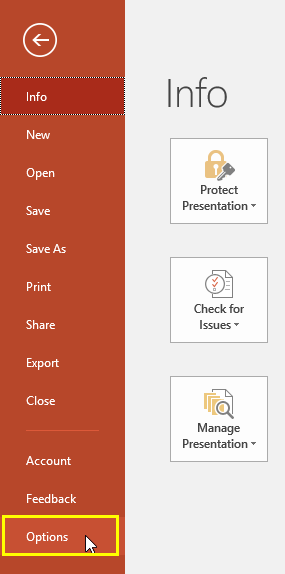
Click the File menu. Click on Options (bottom left, highlighted below in yellow):
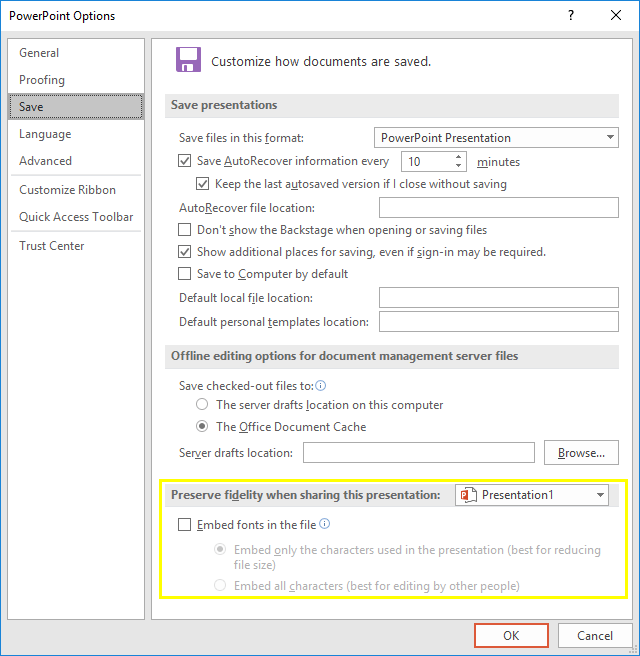
Here you get to the PowerPoint Options screen. Select the Save tab on the left, and near the bottom (highlighted in yellow, below) you’ll find an option to embed fonts in the file (with a drop-down letting you change which file you’re using, if you have multiple files open).
If the person you’re sending the file to will need to edit it in any way, then it is best to select the “Embed all characters (best for editing by other people)” option.
And that’s it! When you save your presentation it will now contain all the fonts you’ve used, so it will look the same on the recipient’s machine as it does on yours.
PowerPoint on Mac
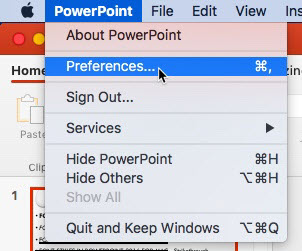
First, go to the PowerPoint menu, and select Preferences:
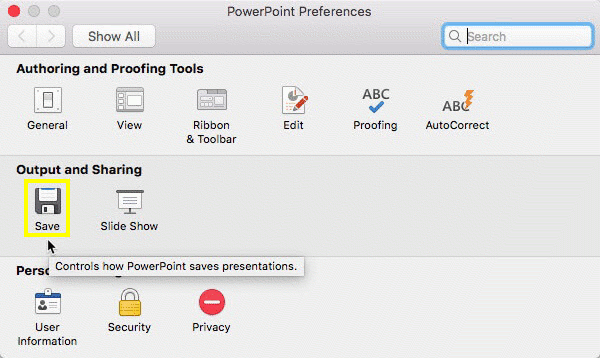
Select Save from the Output and Sharing section, highlighted below in yellow:
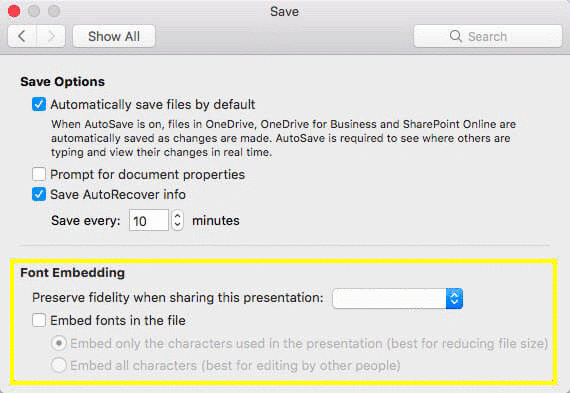
At the bottom of the Save options screen (highlighted in yellow, below) you’ll find the option to embed fonts in the file (with a drop-down letting you change which file you’re using, if you have multiple files open).
If the person you’re sending the file to will need to edit it in any way, then it is best to select the “Embed all characters (best for editing by other people)” option.
And that’s it! When you save your presentation it will now contain all the fonts you’ve used, so it will look the same on the recipient’s machine as it does on yours.