Hi Claudine, there are 10 steps to getting your new signature to work in GMail. Click on any image to open it fully.
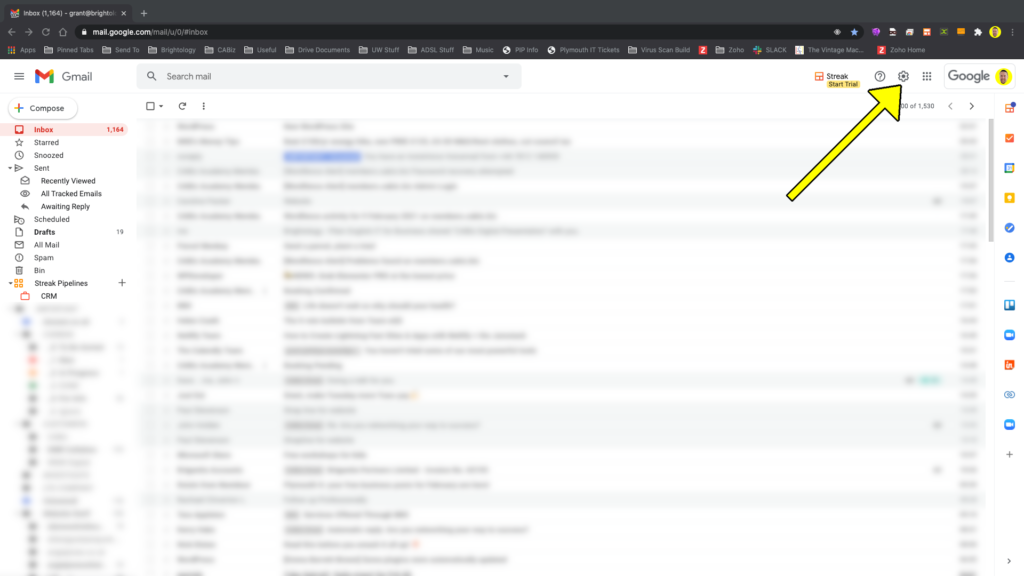
Step 1: In GMail, click on the cog in the top-right of the screen:
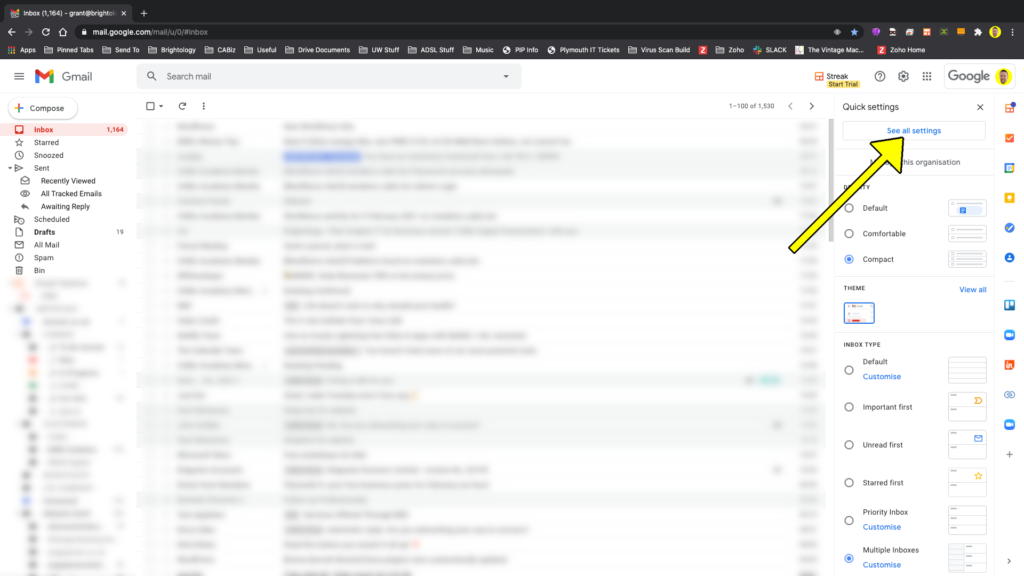
Step 2: From the pop-out menu, select “See all settings”:
Step 3: When the settings screen loads, scroll towards the bottom:
Step 4: When you get to the “Signatures” section, click on the “+ Create new” button:
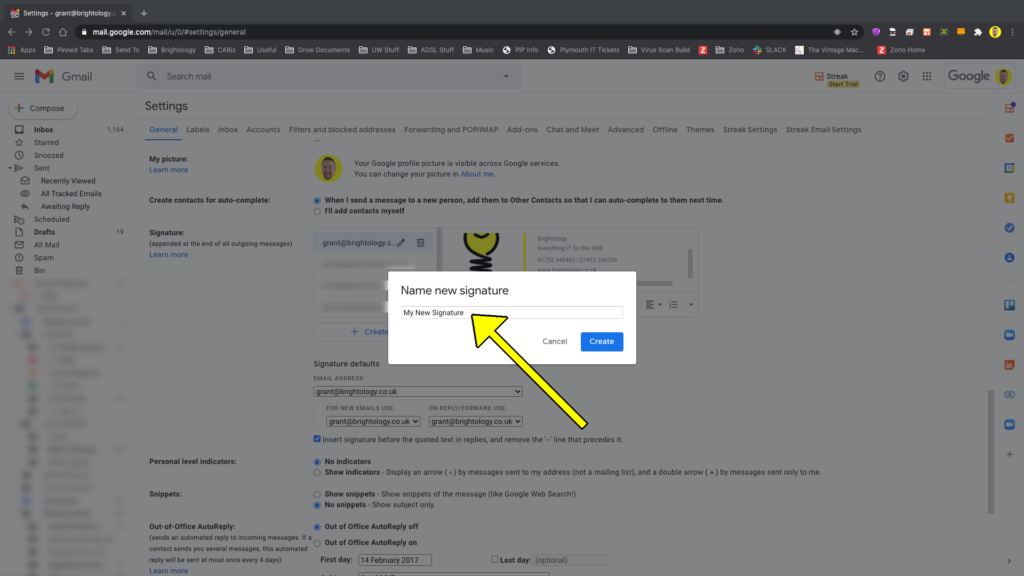
Step 5: Give your new signature a name:
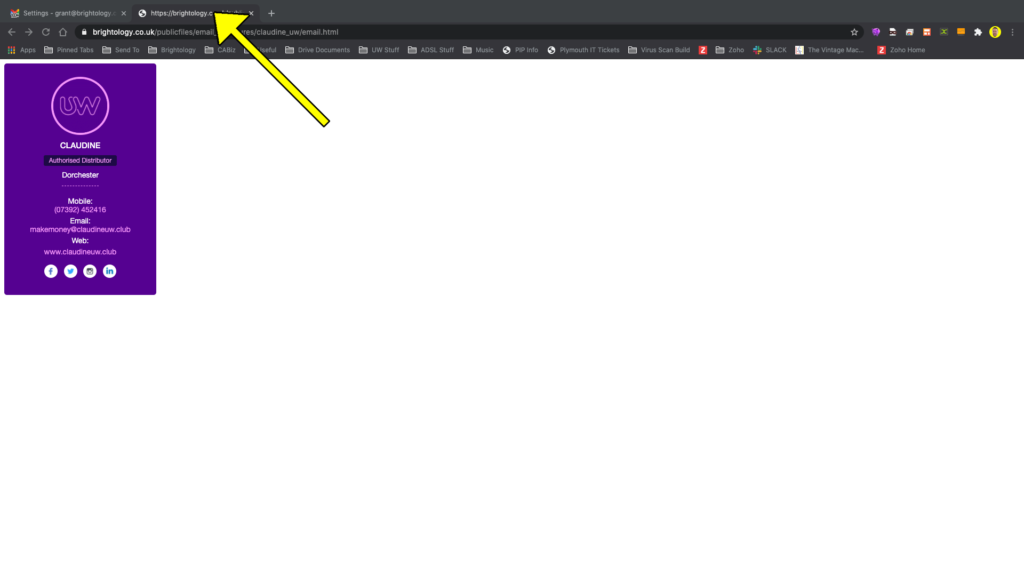
Step 6: In a new tab, open the signature document that I sent you in WhatsApp:
Step 7: When it has opened, you need to highlight everything – the easiest way to do this is to hold the “CTRL” key and press the “A” key; then you need to copy it, which can be done with CTRL and C:
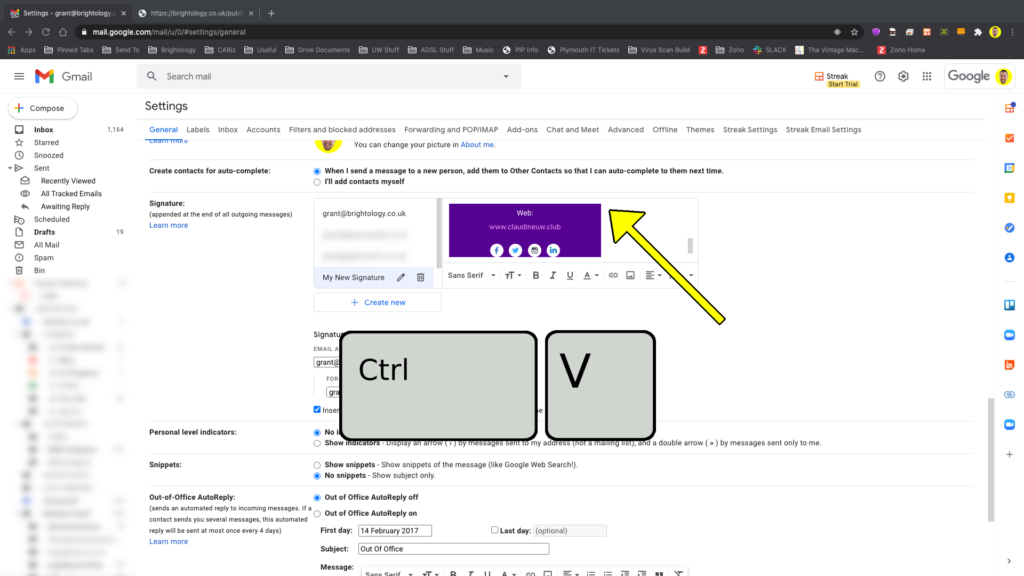
Step 8: Go back to the GMail settings page you have open, click in the signature box on the right, and then hold the “CTRL” key and tap “V” to paste what you copied in here:
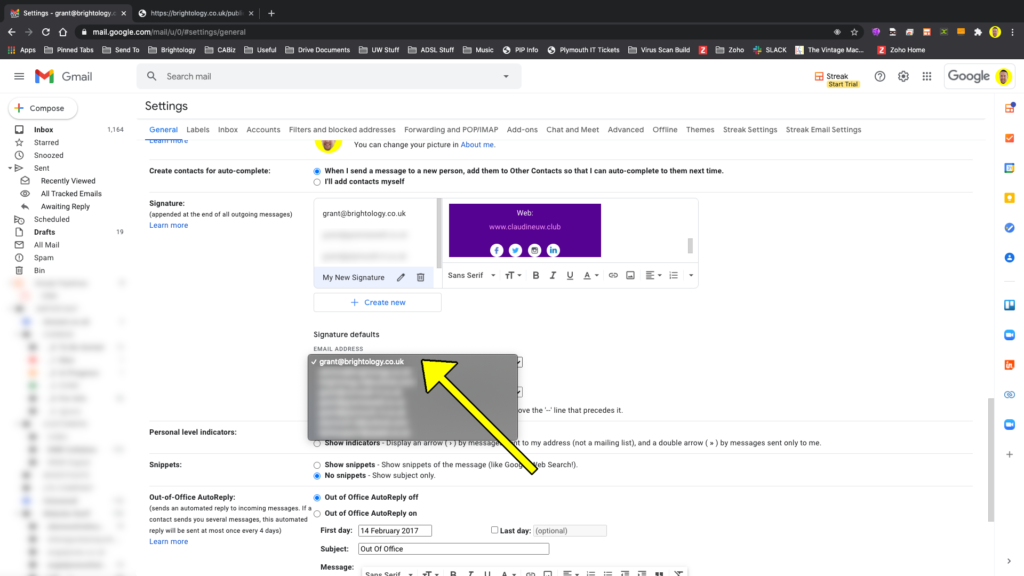
Step 9: Just underneath the “+ Create new” button is a section where you can choose which email address each signature is associated with. Select your UW email address from the list.
Step 10: Scroll to the very bottom of the settings page, and click the “Save Changes” button.
You can now enjoy your new UW signature on any email you send from your UW account.